A QR print-proof record before the artwork is approved
Log the final artwork, physical print size and real scan route before approving a QR print run. A successful scan of the source SVG does not approve the printed item.
A designer sends an SVG that scans perfectly from a large monitor. The production card will be smaller, folded, coated or read under a different light. Approval needs a record of the actual proof, because the file preview and the object in a customer’s hand are different tests.
Name the object you approved
Start with an artwork version and a physical placement. A sample record for a carton insert might name care-card-v3, a flat insert and its intended print dimensions. Do not reuse that approval for a glossy label wrapped around a bottle without another test.
Artwork version and checksum or file reference:
Product, material and surface:
Finished QR symbol size:
Quiet-zone treatment:
Printed fallback address and action label:
Encoded route checked against approved source:
Destination owner:

Proof observation:
- Device and camera/scanner:
- Lighting and approximate viewing setup:
- Result of scanning the physical proof:
- Destination reached and promised task completed:
- Manual fallback checked:
- Problems, corrective action and retest version:

Reviewer:
Approval scope and date:
Follow the care-card example through
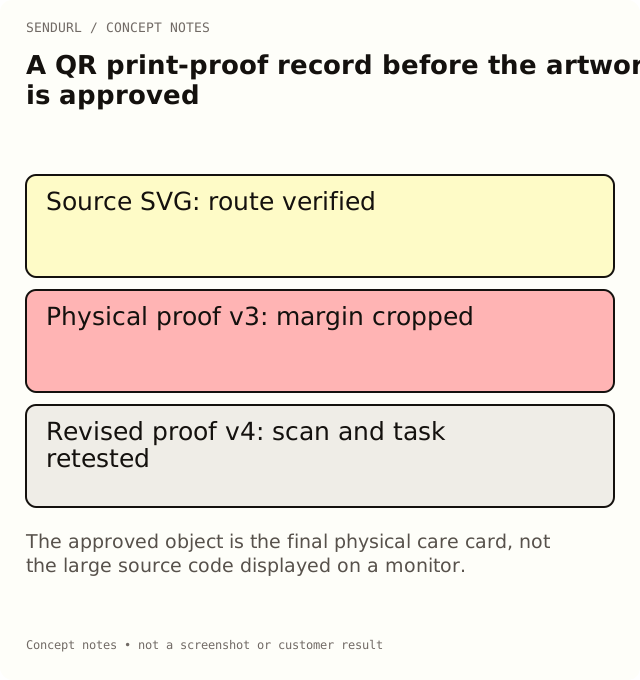
Suppose the source code opens a care guide, but the print supplier crops the white margin when fitting the card. The useful observation is not “QR failed.” Record the cropped proof version, restore the required surrounding space in the artwork and test a newly produced proof. Keep the unsuccessful observation so another reviewer does not approve the old file later.
Then check the destination from the scanned route, not from a bookmark. If the card promises care instructions, a seasonal sale page is a content failure even when decoding is instant. Print an appropriate fallback address and test that someone can type it accurately.
Keep appearance and routing separate
Free organization QR downloads carry the SendURL mark and allow styling on one saved link. Pro and higher remove that mark and allow styles on every link. Those plan rules do not guarantee that a particular color, material or size will scan. Styling covers colours, dot and corner shapes; there is no control for uploading your own logo into the code.
For artwork that may need a new destination later, check the destination-edit and QR plan features before printing. Pro+ can retarget the saved destination while preserving the short route. The pixels already on paper do not repaint themselves when a plan or style changes.
Create the managed link before exporting the approved code, then lock the exact artwork file for production. Keep the record beside that file rather than in a general campaign chat where version history becomes ambiguous.
Size and quiet-zone reference
The QR Code Size for Print guide explains physical sizing and readable surrounding space. Use its principles to plan the proof; keep your approval tied to the observed object.
Frequently asked questions
Is a phone screenshot a print proof?
No. It can verify the encoded route, but it does not reproduce the material, finish or actual printed dimensions.
Does changing a QR style change the encoded URL?
A style changes the artwork. Verify that the same approved route remains encoded, then approve the new physical proof.
Can I approve every device from one successful scan?
Record only the devices and conditions tested. One observation is not universal compatibility evidence.
A QR code for every short link.
Every short link comes with its own QR code, and each scan is counted as a click and marked as a scan. Free, with no sign-up to start.